
How to bulk export Heidi notes for free
핵심 요약
- Heidi exports notes one session at a time, as a PDF or Word document.
- The free Hanah Chrome extension exports every Heidi session in one go: notes, documents, Context and transcripts.
- You get one zip with a plain text file for each patient. Export one patient, a few, or all of them.
- Export doesn't need a Hanah account, and nothing is sent to Hanah.
Heidi lets you download a note as a PDF or Word document from inside a session. With a full caseload that means opening every session one by one. Bulk export is an open request on Heidi's feedback board, and one clinician asked for a zip of every note because saving them individually took too long.
Export your Heidi notes
- Install the Hanah Chrome extension.
- Open Heidi in Chrome and sign in. The Hanah window opens on the page. If you closed it, click the Hanah button in the bottom right corner.
- Click the Export tab.
- Leave All patients ticked to export everything, or search for a patient and tick only the ones you want.
- Click Export everything. The extension reads each session and saves
Heidi notes.zipto your downloads.
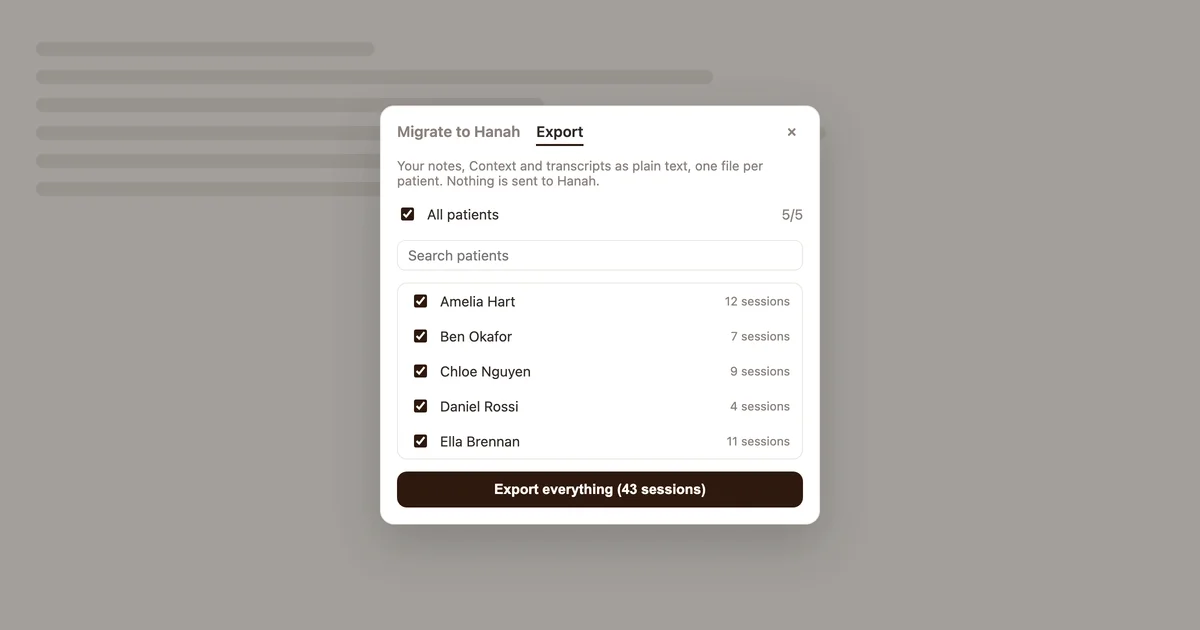
A large caseload takes a few minutes. Keep the Heidi tab open until the export finishes.
The export files
Each patient gets a text file named after them, such as Amelia Hart.txt. Sessions are in date order, oldest first, and each one has:
- the date, time and session name
- the note and any documents written in the session, such as letters and reports
- the Context you added
- the transcript
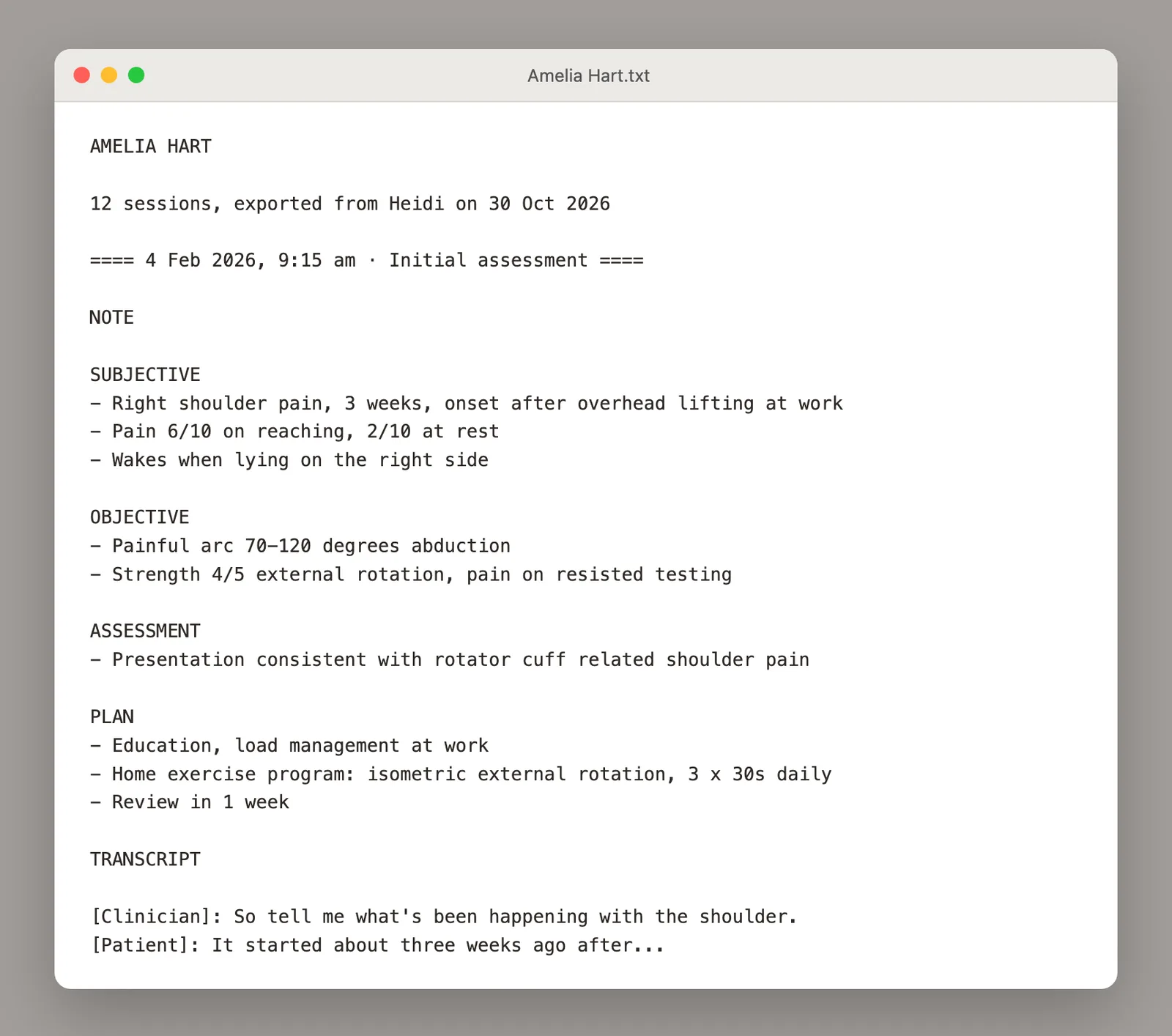
Plain text opens on any computer, in Notepad, TextEdit, Word or Google Docs, and you can paste it into your practice management system.
Heidi stores the patient name typed into each session, and the export groups sessions by that name. Sessions with no name go into Unnamed patient.txt, and a name spelled two ways ends up in two files.
Attachments and PDF forms aren't part of the text export. The Migrate to Hanah tab brings those across with your sessions.
Privacy
The export runs in your browser. The extension reads your sessions with your Heidi sign-in, builds the zip on your computer and saves it to your downloads. Nothing is sent to Hanah, and you don't need a Hanah account.
The zip holds patient health information. Store it where you keep the rest of your clinical records.
Export before you cancel or delete
Heidi can delete sessions automatically after a period you choose, and deleted sessions cannot be recovered. Export first, then change your retention setting or close your account. Our guide to cancelling Heidi covers the cancellation and getting back a prepaid annual plan.
Moving to Hanah
The Migrate to Hanah tab, next to Export, brings your Heidi templates, past sessions and teammates into Hanah. The Heidi alternative guide has the details. Hanah's Practice plan starts with a 1-month free trial and no card.
자주 묻는 질문
Can I export all my notes from Heidi at once?
Heidi exports one session at a time. The free Hanah Chrome extension exports every session into one zip, with a plain text file for each patient.
Do I need a Hanah account to export?
No. The Export tab works without signing in to Hanah, and nothing is sent to Hanah.
Does the export include transcripts?
Yes. Each session has its note, any documents, the Context and the transcript.
Can I export a single patient?
Yes. Untick All patients, search for the patient, tick them and click Export.
Does it work with Lyrebird?
Yes. Open Lyrebird in Chrome with the extension installed and use the Export tab. The download is named Lyrebird notes.zip.
이 글에서 인용한 출처
- Hanah Chrome extension — chromewebstore.google.com
- Heidi's feedback board — getheidi.canny.io
- asked for a zip of every note — getheidi.canny.io
- Heidi — scribe.heidihealth.com
- delete sessions automatically — heidihealth.com
- cannot be recovered — support.heidihealth.com